Knowledge base › Online and app orders
Each store has its own ordering page fed by the ROUX menu, so prices, descriptions and sold-out items always match.
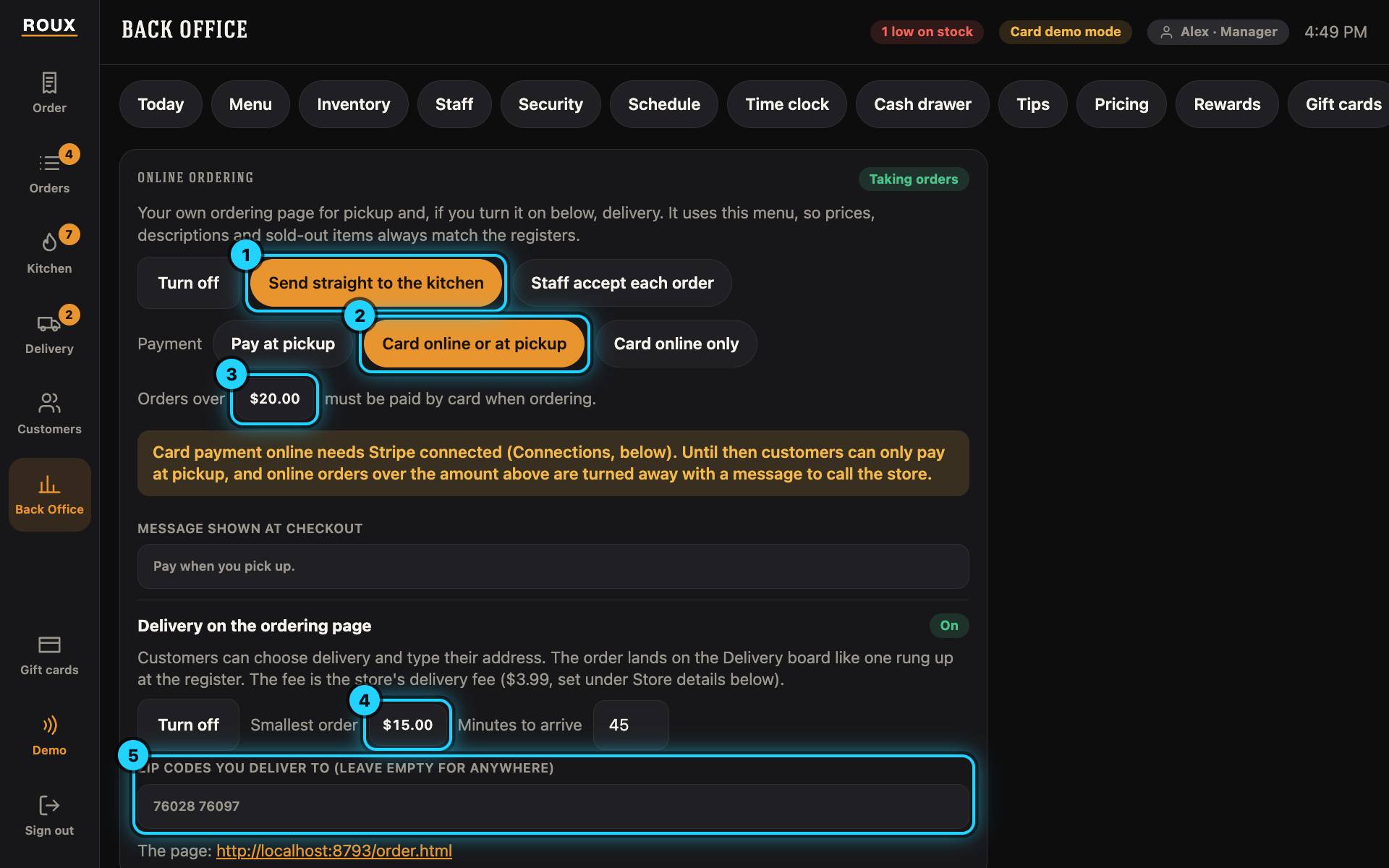
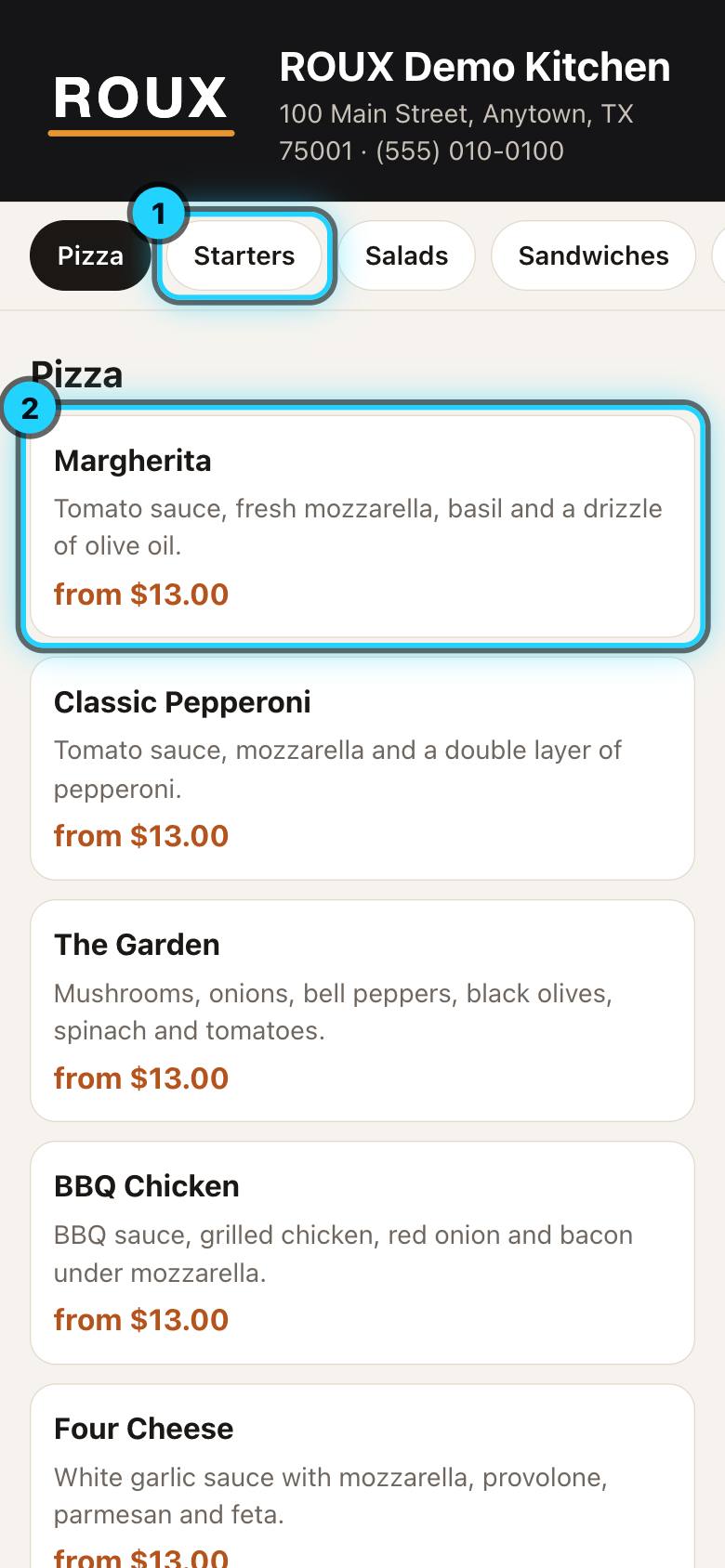
Turn it on
- Open Back Office > Settings > Online ordering and press Turn on.
- Choose Send straight to the kitchen or Staff accept each order.
- Choose how customers pay: at pickup, card online or at pickup, or card online only.
- Set the amount over which an order must be paid by card (starts at $20; 0 means no rule).
- Edit the message shown at checkout.
- Copy the page address shown at the bottom of the card and link to it from the store's website.
Use it
- Online orders arrive marked "Online".
- If staff accept each order, they wait under Orders > Online. Open one and press Accept online order.
- A scheduled online order waits for its time like any other.
Good to know
- Card payment online needs Stripe connected. Without it, orders over the card amount are turned away with a message to call the store.
- Payments from online orders are filed under one register, chosen in Settings > Online orders go to.
- It takes orders at any hour while it is on. Store hours are not built.