Knowledge base › Staff and security
Decide what each position may do, and make exceptions for a person.
Steps
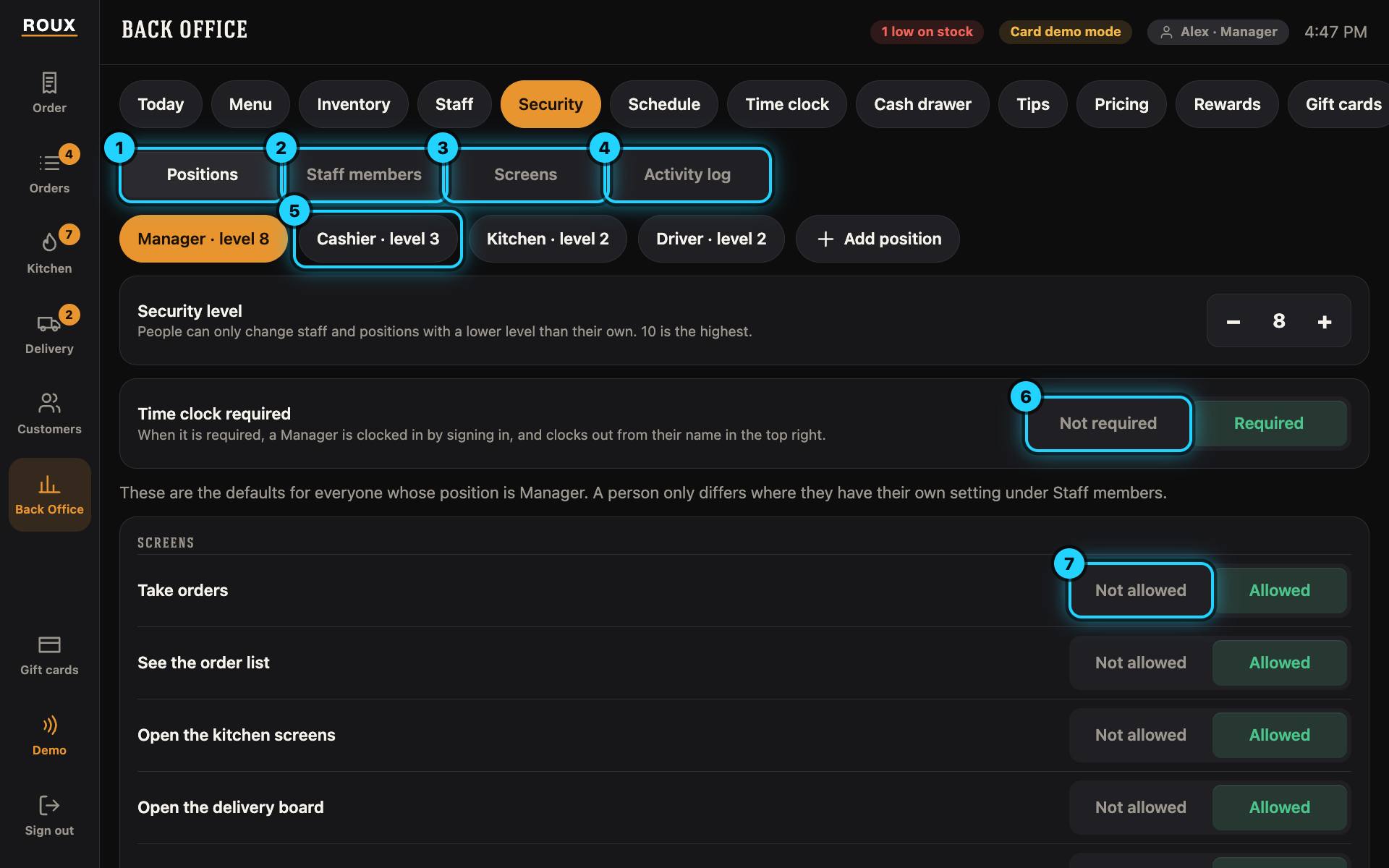
- Open Back Office > Security.
- Pick a position. Each permission is Allowed or Not allowed.
- Set the position's Security level from 1 to 10. People can only change those below their level.
- Set Time clock required for the position.
- To make an exception, pick a person and set a permission to Allowed, Not allowed, or to follow their position.
- Press Add position for a new one.
Good to know
- When someone tries something they are not allowed to do, the screen asks for the PIN of someone who is. That approval is logged.
- ROUX refuses a change that would leave nobody able to manage staff and security.
- The activity log on this tab records voids, refunds, PIN approvals, paid in and out, and every settings change.