Knowledge base › Screens the customer sees
TVs on the wall that show your menu and update when the menu changes.
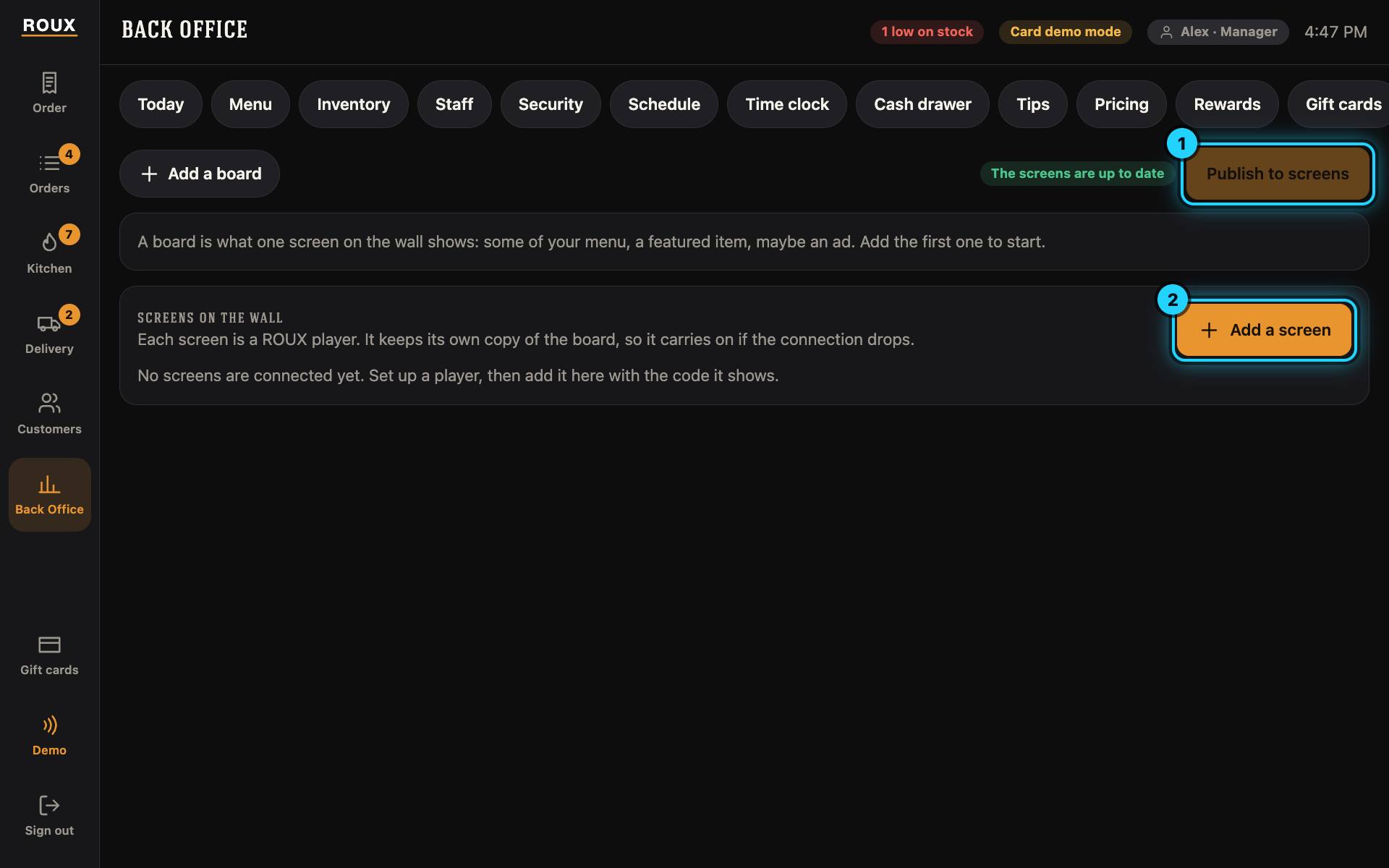
Design a board
- Open Back Office > Menu boards and add a board.
- Give it a heading, pick the categories and their order, and choose whether to show descriptions.
- Pick a featured item and up to eight highlighted items.
- Choose what happens to sold-out items, where ads go, and the look: colours and background.
- Check the preview, then press Publish to screens.
Put it on a TV
- Set up the small player computer behind the TV with the installer from the store's address.
- The TV shows a six-digit code. Accept it from a register, or use Menu boards > Add a screen, and choose which board it shows and which way it is turned.
Good to know
- Prices, descriptions and sold-out come from the menu. Nothing is typed twice.
- A board keeps showing if the internet drops, and still changes scheduled prices on time.
- Not yet tried on a real player or TV.